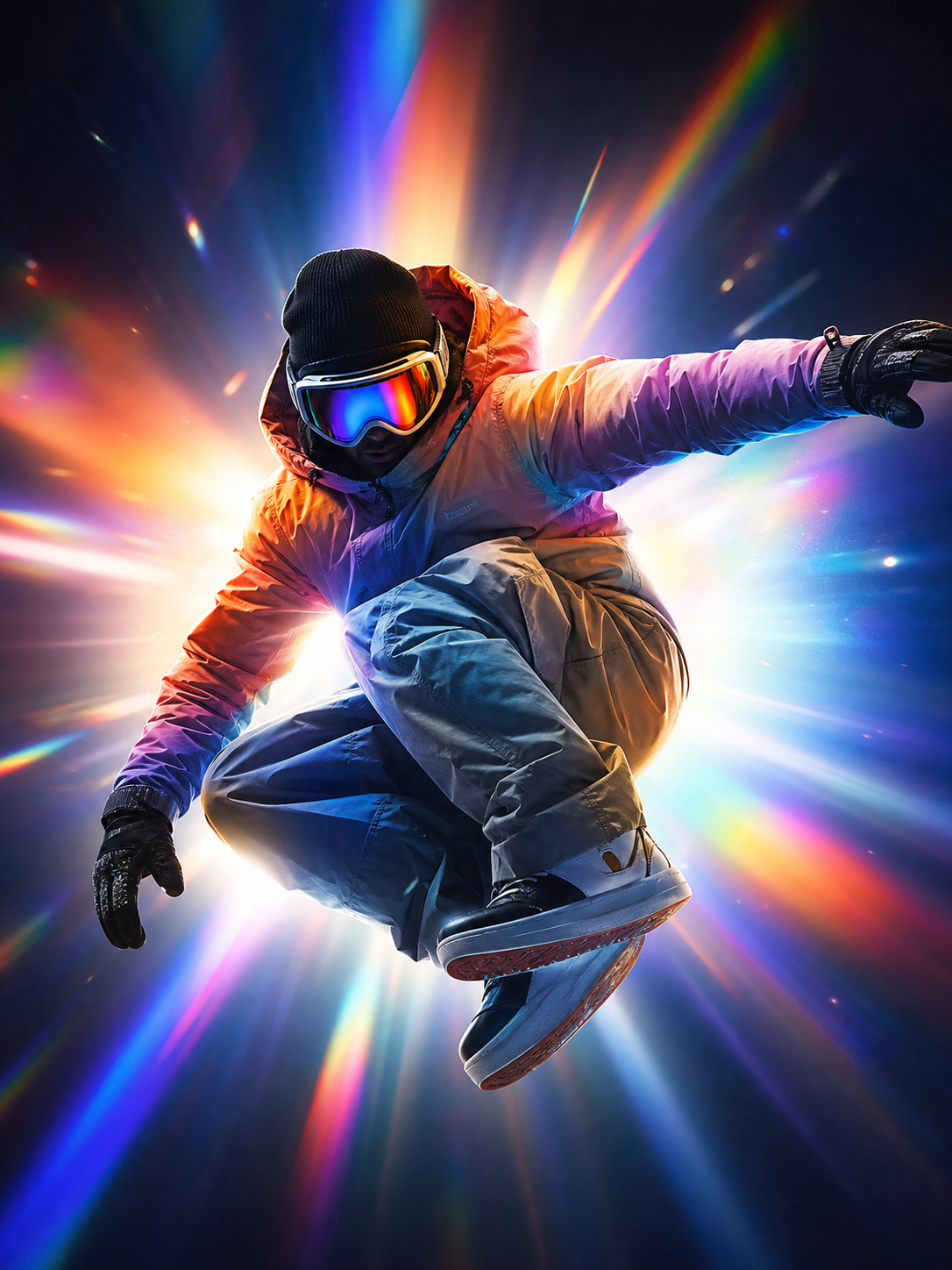
Outpaint any image beyond its frame.
Extend a photo in any direction while preserving the original composition and matching the surrounding light, color, and detail.

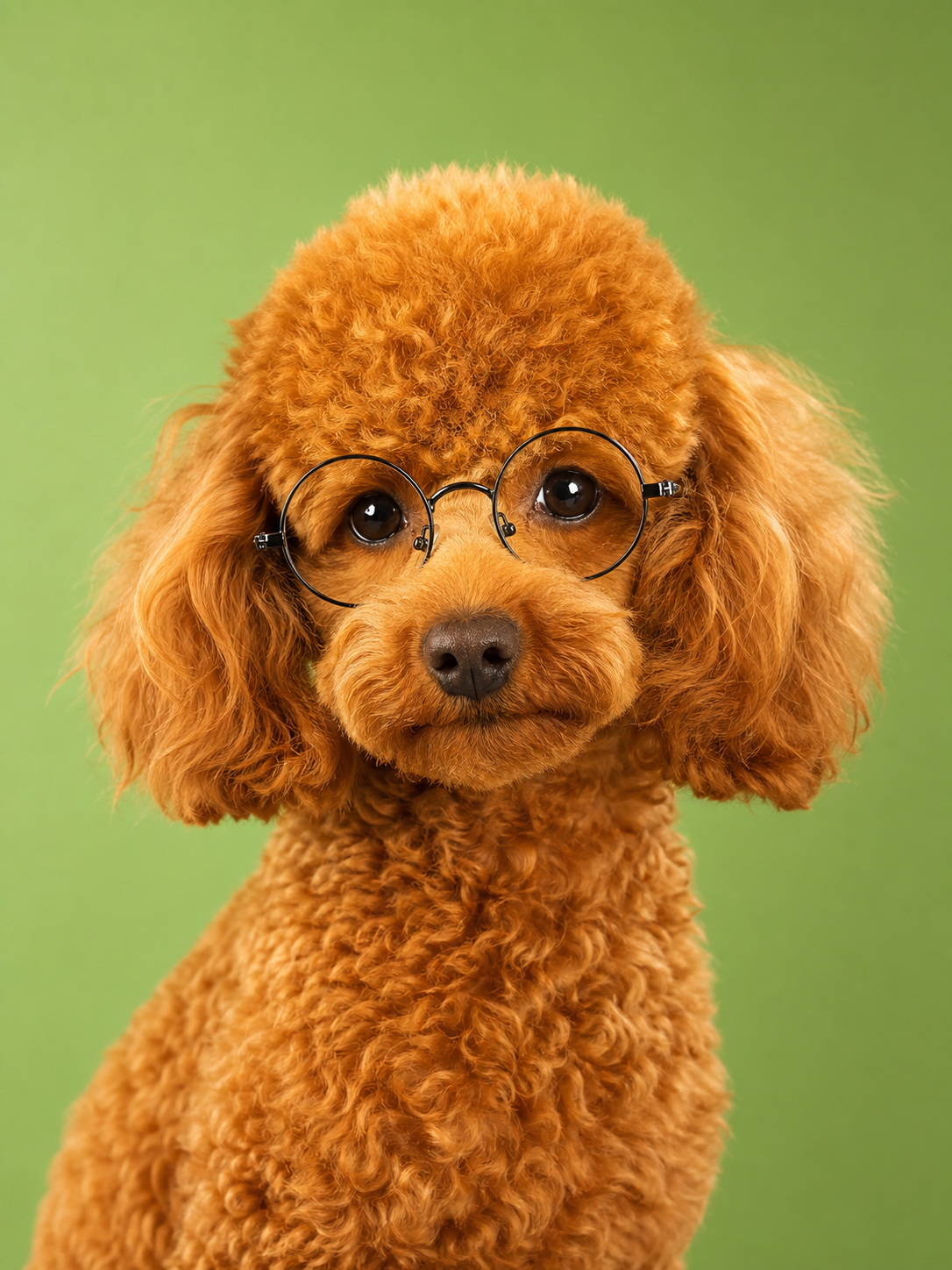
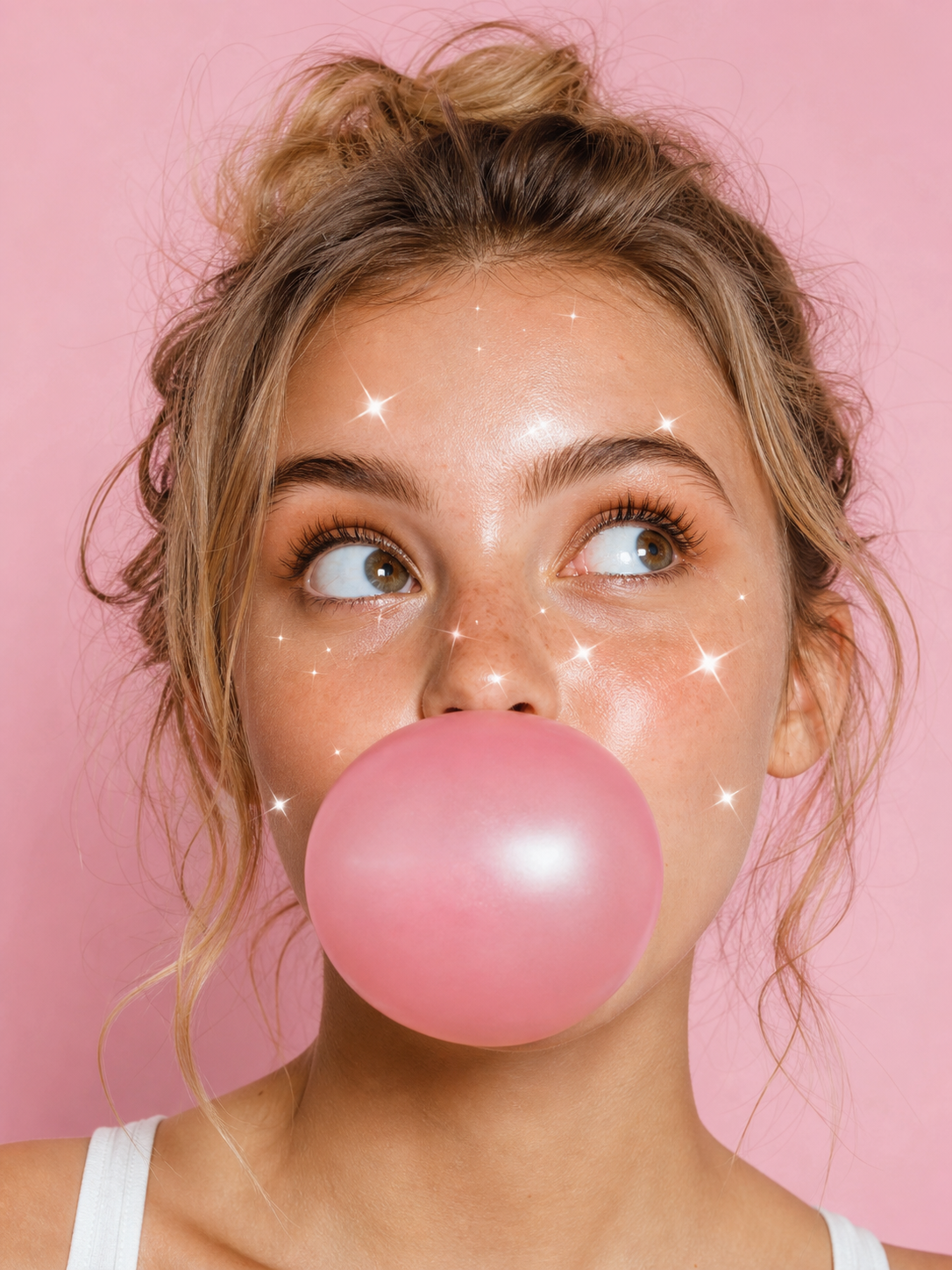
How it works
Three steps with AI Image Outpainting.
01
Upload an image
Choose the source image you want to extend in Mochi's image editor.
02
Set the new canvas
Choose the direction, size, or aspect ratio and optionally describe what should continue beyond the frame.
03
Generate when enabled
Outpainting runs when a compatible image-editing provider is enabled in Mochi.
Related
Other image effects in Mochi.
I can start with a rough image idea, try a few directions, and keep the best results together without losing track of the process.
Maya Chen
Digital Creator
Having different image models in one place makes it easier to compare styles and choose the one that fits the idea before I keep refining it.
Ethan Brooks
Creative Director
The focused tools are useful because I can jump straight into the edit I need instead of searching through one huge workflow.
Lina Patel
Marketing Designer
Saving results to Assets means I can come back to an image later, reuse it, and continue from where I left off.
Noah Bennett
Content Creator
I like being able to move from image generation into character and scene work without starting the whole creative process again.
Sofia Reyes
Character Artist
The video workflow gives me a clear place to shape the visual direction first, then move into motion when the idea is ready.
Daniel Kim
Video Editor
Seeing example prompts next to finished visuals helps me understand what details actually make a difference when I start creating.
Ava Morgan
Social Media Creator
Cinema and camera tools make it easier to explore stronger framing and different shot ideas without rebuilding the scene from scratch.
Leo Hart
Filmmaker
I can keep a character idea consistent while testing new looks, expressions, and scenes instead of recreating the same concept every time.
Nina Alvarez
Visual Storyteller
Having voice, lip-sync, image, and video tools connected in one workspace makes multi-step projects much easier to organize.
Owen Carter
Multimedia Producer
The model pages give me enough context to understand what each option is for before I open the workspace and start experimenting.
Chloe Martin
Brand Designer
What helps most is that the whole flow stays connected — discover an idea, create it, refine it, and keep the result ready for the next step.
Ryan Foster
Creative Producer
Create without limits
Every AI model. Every creative tool. One platform built for makers who mean it.